Sådan forbereder du dine smykkefotografier til AI-retusjering: Guiden til inputkvalitet
AI-retusjeringskvaliteten afhænger stærkt af dit inputfoto. Lær præcis hvilken opløsning, belysning, vinkel og baggrund dine smykkefotografier har brug for for at få de bedste AI-retusjeringsresultater.
Læs mere
Hvorfor inputkvalitet betyder mere end hvilket AI-værktøj du bruger
Kvaliteten af dit AI-retusjeringsresultat bestemmes 80% af dit inputfoto. Skyd på 2000px eller større, brug blød diffus belysning fra oven, fotografer i en vinkel på 30 til 45 grader, der matcher din referencestil, brug en plain let baggrund, undgå hård direkte blitz, og sørg for at smykket fylder mindst 60% af billedrammen. Værktøjer som Jewels Retouch kan arbejde med smartphonefotografier, hvis disse grundlæggende betingelser er opfyldt.
- 01Hvorfor inputkvalitet betyder mere end hvilket AI-værktøj du brugerSelv den bedste AI-retusjeringsmotor kan ikke skabe detalje, der ikke eksisterer i originalfotoet. Et uskarpt, undereksponeret eller dårligt indrammeret input vil producere et uskarpt, mørkt eller dårligt komponeret output, uanset hvor avanceret AI'en er. At få inputtet rigtigt er den eneste mest påvirkningskraft, du kan gøre for at forbedre dine resultater.
- 02Opløsnings- og filformatkravSkyd på mindst 2000 gange 2000 pixels. Højere opløsning giver AI'en mere detalje at arbejde med, især for fine elementer som kædelinks og pavé-stene. Brug JPEG, PNG eller WebP format. Filstørrelse op til 20MB accepteres typisk af AI-værktøjer som Jewels Retouch.
- 03Belysning: Den vigtigste enkeltfaktorBrug blød, diffus belysning fra oven og let foran. Undgå direkte blitz (skaber hårde pletter på metal) og hård retningsbestemt lys (skaber dybe skygger). Et nordvendt vindue med et ark hvidt papir som diffuser giver glimrende resultater. En $30 LED-softbox fungerer til konsistent indendørsfotografering.
Hvorfor inputkvalitet betyder mere end hvilket AI-værktøj du bruger
Selv den bedste AI-retusjeringsmotor kan ikke skabe detalje, der ikke eksisterer i originalfotoet. Et uskarpt, undereksponeret eller dårligt indrammeret input vil producere et uskarpt, mørkt eller dårligt komponeret output, uanset hvor avanceret AI'en er. At få inputtet rigtigt er den eneste mest påvirkningskraft, du kan gøre for at forbedre dine resultater.
Mange smykkeforhandlere fokuserer på at vælge det rigtige AI-retusjeringsværktøj, men ignorerer kvaliteten af de billeder, de uploader. Det er som at vælge mellem premium printere, mens du fodrer dem med lavopløsningsfiler, output er begrænset af input.
AI-retusjering fungerer ved at analysere dit foto, forstå smykkestykket, fjerne baggrunden og generere en katalogklar version med korrekt belysning, skygger og placering. Hvert trin i denne proces afhænger af, at AI'en tydeligt kan se stykket. Hvis inputtet er uskarpt, kan AI'en ikke skærpe detalje, der aldrig blev fanget. Hvis smykket er undereksponeret, må AI'en gætte hvilken farve metallet har. Hvis stykket er lille i billedrammen, arbejder AI'en med få hundrede pixels af faktisk smykkdata.
Det gode nyt er, at forberedelse af et ordentligt inputfoto kræver intet dyrt udstyr. En moderne smartphone med ordentlig belysning producerer fremragende resultater. Forskellen mellem et godt og dårligt AI-retusjeringsresultat er normalt ikke kameraet, det er de belysnings-, vinkel- og indramningsvalg, fotografen gjorde.
Opløsnings- og filformatkrav
Skyd på mindst 2000 gange 2000 pixels. Højere opløsning giver AI'en mere detalje at arbejde med, især for fine elementer som kædelinks og pavé-stene. Brug JPEG, PNG eller WebP format. Filstørrelse op til 20MB accepteres typisk af AI-værktøjer som Jewels Retouch.
Flere brugbare kildepixels gør det generelt lettere at undersøge små detaljer, men opløsning alene kan ikke udbedre sløring, genskin eller dårlig fokusering. Undgå kraftig genkomprimering, og husk, at understøttede formater som GIF eller HEIC kan blive standardiseret til behandlingen.
Sørg for, at selve smykket fylder tilstrækkeligt mange pixels til at vise fatninger, led, graveringer og kanter. Et vidvinkelbillede i høj opløsning kan stadig være et svagt input, hvis smykket er meget lille. Undgå softwarebaseret portrætsløring omkring fine detaljer, og eksportér kameraets RAW-filer til et almindeligt understøttet format, før du uploader dem.
Stol ikke på ét universelt pixelantal eller en standardindstilling fra en telefonproducent. Kontrollér den faktiske fil, zoom ind på smykket, og bekræft, at alle detaljer, der skal med i resultatet, er synlige og skarpe.
Belysning: Den vigtigste enkeltfaktor
Brug blød, diffus belysning fra oven og let foran. Undgå direkte blitz (skaber hårde pletter på metal) og hård retningsbestemt lys (skaber dybe skygger). Et nordvendt vindue med et ark hvidt papir som diffuser giver glimrende resultater. En $30 LED-softbox fungerer til konsistent indendørsfotografering.
Belysning afgør, om AI kan læse metal, stenfarve og overfladedetaljer korrekt. Dårligt lys skaber hårde skygger og forvirrende reflekser. Brug blødt, diffust vindueslys eller softbox, og undgå direkte flash.
Vinkel og positionering: Match dit referencestil
Fotografer i en 30 til 45 graders vinkel fra oven for de mest alsidige resultater. Vinklen skal matche det referencestil, du ønsker, at AI'en skal gentage. Sørg for, at smykket sidder naturligt - ringe opret og lidt vinklet, halskæder lagt fladt eller drapereret, øreringe parret med konsistent afstand.
Vinklen, du fotograferer i, skal matche vinklen på din reference eller ønskede katalogstil. AI-retoucheringsværktøjer som Jewels Retouch bruger et stilreferencesystem - du uploader ét referencebillede, og hvert efterfølgende foto behandles til at matche den samme stil, herunder vinkel, positionering og komposition.
30 til 45 graders vinkel fra oven er standardkatalogvinklen for de fleste smykktyper. Det viser toppen og fronten af stykket samtidigt, hvilket giver seeren en klar forståelse af formens tredimensionelle form. Denne vinkel minimerer også problematiske refleksioner på flade metaloverflader.
Ringe bør positioneres opret, let vinklet mod kameraet. Læg ikke ringe fladt på siden - dette skjuler indstillingen og får stykket til at se ud som en simpel bånd. Brug et lille stykke museumsbindinger eller lim på bagsiden af ringen for at holde den i den rigtige vinkel.
Halskæder og kæder skal lægges ud for at vise deres form klart. Undgå sammenfiltrede eller bundtet kæder. For anhængere skal du positionere kæden i en blid kurve over anhængeren, så seeren forstår hele stykket. Hold spændet uden for det primære skud, medmindre det er en designfunktion.
Øreringe bør parres med konsistent afstand. Fotografer begge øreringe sammen med lige afstand mellem dem. Sørg for, at de er positioneret i samme vinkel - uens vinkler mellem venstre og højre øreringe ser uprofessionelle ud, selv efter AI-behandling.
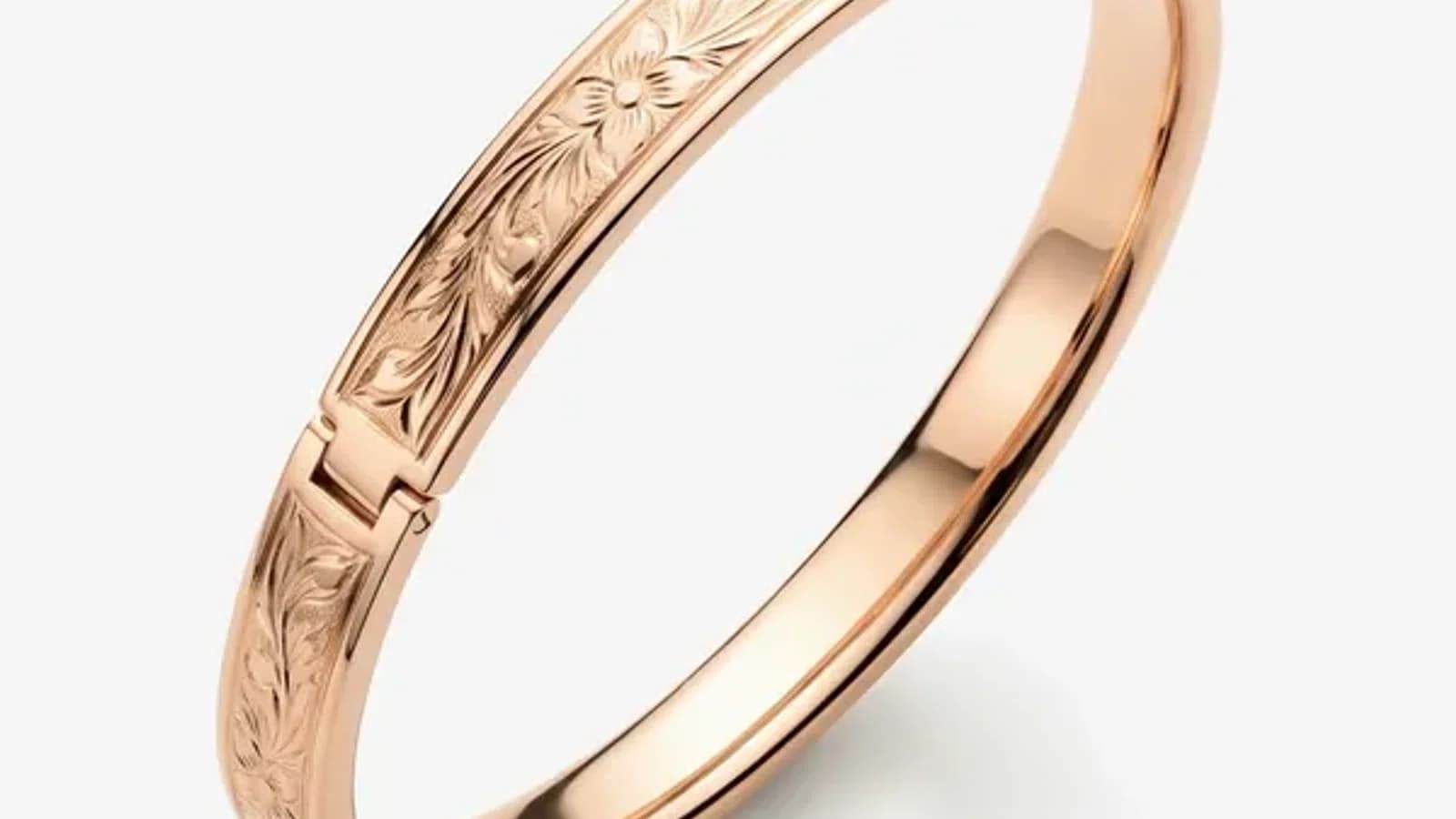
Armbånd kan formes til en cirkel eller blid oval. For stive bangles skal du fotografere i en vinkel, der viser både front-detaljen og tredimensional form. For fleksible armbånd skal du arrangere leddene pænt uden at overlappe.
Baggrund og overflade: Hvad man skal fotografere på
Fotografer på en plan hvid eller lysegrå overflade. Undgå strukturerede overflader, farvede baggrunde og reflekterende materialer. Et enkelt ark hvidt papir eller skummodul virker perfekt. AI'en fjerner og erstatter din oprindelige baggrund - dit job er at gøre denne fjernelse så ren som mulig.
AI'en fjerner din oprindelige baggrund og erstatter den med et rent, katalogstandard resultat. Men jo renere din oprindelige baggrund er, jo mere præcist kan AI'en adskille smykket fra omgivelserne.
Simpelt hvidt papir eller kort er ideelt. Det giver maksimal kontrast mod de fleste smykker (som er metalliske og mørkere), hvilket gør det let for AI'en at detektere præcise kanter. Hvid skummodul fra enhver kunstneforretning virker lige så godt og er stiv nok til at skabe en lille fotograferingsflade.
Lyst grå er acceptabel. Nogle fotografer foretrækker lyst grå, fordi rent hvidt kan forårsage eksponeringsmæssige problemer - kameraet kan undereksponere smykket for at kompensere for den lyse baggrund. Lyst grå undgår dette, mens det stadig giver god kontrast.
Undgå farvede baggrunde. Farvede overflader reflekterer deres farve på poleret metal. En blå baggrund vil farve sølvoverflader blå. En varm træoverflade tilføjer orangetoner til hvidt guld. AI'en skal så gætte den sande metalfarve, hvilket introducerer unøjagtighed.
Undgå strukturerede overflader. Stofstrukturer, træudtryk, marmormustre - disse skaber komplekse kantomdetektion-udfordringer for AI'en. Systemet kan inkludere teksturbits i det endelige resultat eller klippe smykkekanter, der blandes med teksturen.
Undgå reflekterende overflader. Spejle, glas og højglansoverflader skaber en refleksion af smykket under det. AI'en kan detektere både stykket og dets refleksion, hvilket fører til forvirring om den faktiske form og kanter på smykket.
Hold overfladen ren. Støv, fingeraftryk, ridser og fnug på fotograferingfladen kan blive vist på fotoet. Selvom AI'en kan håndtere nogle oprydninger, hvorfor give den ekstra arbejde? Tør overfladen før hvert skud.
Indholdelse og komposition før upload
Smykket skal fylde 60 til 80 procent af billedet. Efterlad noget plads omkring stykket, så AI'en har noget at arbejde med, men skyd ikke fra langt væk, hvor smykket ser bittesmåt ud. Beskær løst før upload. AI'en håndterer den endelige komposition.
Hvor meget af billedet smykket optager, påvirker direkte hvor meget detail AI'en har at arbejde med.
Fyld 60 til 80 procent af billedet med smykket. Hvis du skyder med stykket, der kun optager 10 til 20 procent af billedet, er de faktiske smykkepixler blot nogle hundrede, ikke nok til, at AI'en kan behandle fine detaljer præcist. Kom tæt nok på, så stykket klart er det dominerende element på fotografiet.
Efterlad nogle marginer omkring stykket. Beskær ikke så tæt, at smykket berører kanterne af billedet. AI'en har brug for noget baggrundsområde omkring stykket for at generere rene kanter, skygger og refleksioner. En margin på omkring 10 til 20 procent på hver side er ideelt.
Bekymr dig ikke om perfekt centrering eller komposition. AI'en håndterer endelig positionering og komposition som en del af retouchingsprocessen. Dit job er at fange stykket klart med god detail. AI'en gør resten.
Et stykke pr, foto. Medmindre du specifikt laver en setkomposition (flere stykker arrangeret sammen), fotografer hvert stykke individuelt. Dette giver AI'en det klareste mulige input og undgår forvirring om, hvilke elementer der skal behandles.
Fjern priskilte, stativer og rekvisitter. Ethvert ikke-smykke-element på fotografiet er noget, AI'en skal identificere og arbejde omkring. Fjern hængetiketter, prismærkater, ringstativer og displayrekvisitter før skydning. AI'en fungerer bedst, når det eneste i billedet er smykkestykket på en almindelig baggrund.
Hurtigt tjekliste: Før upload
Opløsning 2000px eller højere, blød diffus belysning, 30 til 45 graders vinkel, hvid eller grå baggrund, smykket fylder 60 til 80 procent af billedet, ingen blitz, ingen portrætmodus, ingen rekvisitter eller tags, ren overflade, enkelt stykke pr, foto.
Før upload: mindst 2000 pixels på længste side, blødt lys, 30-45 graders vinkel, enkel hvid eller lysegrå baggrund, smykket fylder 60-80 procent af billedet, flash slukket, ingen kraftige filtre, prismærker, støv eller fingeraftryk. Test med 3 gratis forhåndsvisninger og 1 HD-download.